iOS Universal Links Opening Safari Instead of Your App
You tap a link to your own domain in Notes. The app is installed. Safari opens anyway, and your web page politely redirects the user to the App Store. The AASA file is valid JSON, the server answers 200, and Settings > Developer > Universal Links > Diagnostics says the app "should open" the link.
We hit exactly this while setting up an iOS app on a domain hosted on Firebase Hosting. It took several wrong turns, and each one turned out to be either a real cause or a real red herring. This post collects them in the order you should check them, so your iOS Universal Links debugging takes minutes instead of an afternoon.
Summary
- Build the
appIDin your AASA file from the App ID prefix, not blindly from the team ID. They are often the same, but not always. - Verify the built app, not your source files: its
application-identifierandassociated-domainsentitlements are what the system uses. - On a normal install, the device asks Apple's CDN for your AASA file, not your server. A fixed file can take a while to show up there.
- To bypass the CDN while developing you need both the device setting and the
?mode=developerentitlement suffix. - Test from Notes or Messages. A correct setup can still open Safari from other apps.
How Universal Links are verified
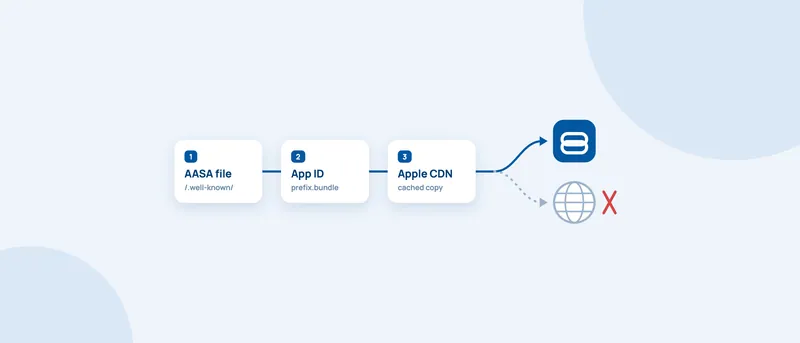
It helps to know what the system does before debugging it. According to Apple's documentation, when a user installs your app the system downloads the Apple App Site Association (AASA) file for each domain in your entitlement and verifies it. Since iOS 14 and macOS 11, those requests no longer go to your server: they go to an Apple-managed content delivery network (CDN) dedicated to associated domains. Apple also states that the CDN requests your file within 24 hours and that devices check for updates roughly once a week after installation.
So three things must agree: the file on your server, the entitlement inside the app you installed, and the copy that Apple's CDN holds. Most "it should work but doesn't" cases are a mismatch between two of them.
Check 1: the live AASA file
Start with the server, because it is the cheapest check.
curl -i https://example.web.app/.well-known/apple-app-site-association
Apple requires the file to be named apple-app-site-association with no extension, served from /.well-known/ over HTTPS with a valid certificate and no redirects. Here is the content we used, in the current appIDs and components format shown in Apple's docs:
{
  "applinks": {
    "details": [
      {
        "appIDs": ["PREFIX.com.example.app"],
        "components": [{ "/": "/*" }]
      }
    ]
  },
  "webcredentials": {
    "apps": ["PREFIX.com.example.app"]
  }
}
We served it with Content-Type: application/json and it was accepted. One hosting gotcha from our setup: a single-page app rewrite returned the HTML shell for /apple-app-site-association at the root, while /.well-known/... returned JSON. iOS reads the .well-known path, so that was harmless here, but it showed how broad our rewrite was. Make sure no catch-all rewrite can swallow /.well-known/*.
Check 2: the App ID prefix is not always your team ID
This was our real cause. Apple's docs describe each identifier as <Application Identifier Prefix>.<Bundle Identifier>. The prefix is the first part of the App ID, and it is usually the same as your team ID, which is why most tutorials say "team ID" and why it is so easy to miss when it isn't.
In our case the built app said PREFIX.com.example.app while the AASA said TEAMID.com.example.app. The file was valid, served with 200 and the right content type, and still never matched.
Other developers report the same symptom. In an Apple Developer Forums thread, one person describes Diagnostics validating their link but returning an ID different from their team ID, and links working immediately after they put that ID in the AASA file. That is a community report, not an official answer, but it matches what we saw.
To find the real value, read it from the installed build:
codesign -d --entitlements - path/to/App.app 2>&1 | grep -A2 application-identifier
Or decode the embedded provisioning profile:
security cms -D -i path/to/App.app/embedded.mobileprovision | grep -A2 application-identifier
You can also read it in the developer portal under Identifiers > your App ID > App ID Prefix.
If you transferred the app
App transfers add a second trap. In another forum thread, an Apple DTS engineer explains that the team ID of the app binary does not change until the new owner submits an update. Their advice is to keep the old ID in the AASA file, add the new one, and publish both before the first update ships. Because appIDs is an array, one entry can list several App IDs.
Check 3: the entitlement in the built app
The com.apple.developer.associated-domains entitlement must contain applinks:example.web.app. Per Apple, include only the domain (and subdomain if needed): no scheme, no path, no query string, no trailing slash. Check the built app, not the entitlements file in your project:
codesign -d --entitlements - path/to/App.app 2>&1 | grep -A3 associated-domains
Two things to look for:
- A stale domain. If an older build still carries an entitlement for a previous setup, that build never asks about your new domain.
- The capability on the App ID. Associated Domains must be enabled for the App ID, and the provisioning profile regenerated afterwards. With automatic signing, Xcode does both for you, according to Apple.
Check 4: what Apple's CDN is serving
On a regular install the device doesn't read your domain. Query the CDN directly to see what it holds:
curl -i https://app-site-association.cdn-apple.com/a/v1/example.web.app
Read the body, then the headers: Apple-From shows the URL the CDN fetched from (useful to detect rewrites or redirects on your host), Age shows how old the cached copy is, and Cache-Control shows how long it may be reused.
In our case the response had Cache-Control: max-age=21600, six hours. We had already fixed the file on the server, and the CDN kept returning the old one with Age: 1479, about 25 minutes. We found no way to force a refresh, so we waited. Apple's documentation says the CDN fetches again from your server when it has no copy or an outdated one, but it doesn't publish a refresh schedule, so treat our numbers as one observation, not a guarantee.
This explains a classic frustration: a TestFlight or App Store build can keep failing after you have fixed the file.
Check 5: developer mode needs two switches
While developing, you don't want to wait for the cache. Apple provides an alternate mode that makes the system bypass the CDN and fetch the AASA file directly from your server. You need both halves:
- On the device: Settings > Developer > Associated Domains Development, switched on.
- In the app: the entitlement
applinks:example.web.app?mode=developer.
Apple's table says the developer mode requires an app signed with a development profile and a device where the user opted in. In practice, the device switch alone does nothing. We lost time on exactly that.
Two rules from Apple's docs: only use alternate mode during development, and remove the query string before submitting to the App Store. A clean way to enforce that is a Debug-only entitlements file, so the suffix can never reach a release build. After changing the entitlement, delete and reinstall the app so the association is fetched again.
Check 6: read what the device actually does
You can watch the system decide. Open Console.app with the iPhone connected and filter by the process swcd, then delete and reinstall the app. Or from the terminal:
brew install libimobiledevice
idevicesyslog | grep -iE "swcd|yourdomain"
The line that matters is route:. Before we added the mode flag:
Beginning data task AASA-… { domain: ex….we….app, bytes: 0, route: cdn }
After adding ?mode=developer:
{ domain: ex….we….app?mode=developer, bytes: 0, route: .wk }
cdn means Apple's cache and .wk means your /.well-known/ path directly. Note that this is behaviour we observed, not something Apple documents, so the log format may change between iOS versions. Domains are partly redacted in the output, and swcd doesn't log whether your app ID matched. The only proof of a match is the link opening the app.
Some lines look alarming and are noise in our experience: Error getting enterprise-managed associated domains data with a note that it's normal on a device that is not enterprise-managed, and Domain https is invalid. Will not attempt a download, which came from another app on the phone with a malformed applinks:https://… entry.
Check 7: test from the right place
A correct setup can still open Safari, depending on where you tap.
- Apple's rule: if a user is browsing your site in Safari and taps a universal link on the same domain, the system keeps it in Safari. A link to a different domain opens the app.
- Calls from inside your own app: if your app uses
UIApplication.open(_:)or SwiftUI'sopenURLon a universal link to your website, the link won't open in your app. - Other apps: Apple says taps inside a
WKWebViewcan open your app, yet our first test from Slack opened Safari. We moved to Notes and Messages, which behave predictably.
Use a URL with a path, not the bare domain.
App side: scene-based apps
Opening the app needs no code. Routing the link does. If your app has opted into scenes, Apple's guide says the link arrives in scene(_:willConnectTo:options:) on a cold launch (read connectionOptions.userActivities) and in scene(_:continue:) when the app is running or suspended. It does not arrive in application(_:continue:restorationHandler:).
We hit one trap: a scene delegate that forwarded to an app delegate method we had deleted. Those app delegate methods are optional protocol methods, so deleting them is safe, but any of your own code that still calls them directly crashes with an unrecognized selector. Also validate every parameter in the URL, as Apple warns that universal links are a potential attack vector.
The debugging order, in one checklist
curl -ithe live AASA: 200, JSON, no redirect, correctappIDs.- Compare
appIDswith the built app'sapplication-identifier. Mind the prefix. - Check the built app's
associated-domainsentitlement. curlApple's CDN URL: is it serving your latest file?- Developing? Device setting and
?mode=developer, then reinstall. - Watch
swcdand readroute:. - Test from Notes or Messages, with a URL that has a path.
When the problem isn't your app
Universal Links sit between your backend, your iOS build and Apple's infrastructure, which is why debugging them is slow when you only own one side. At Inqbarna we build and maintain iOS apps end to end. If your links, onboarding flows or deep linking need a second pair of eyes, take a look at our services or get in touch.
FAQ
Why does my Universal Link open Safari even though the app is installed?
Usually one of four things: the appID in the AASA doesn't match the app's real App ID prefix, the app's entitlement doesn't list the domain, Apple's CDN still holds an old file, or you tapped the link somewhere that keeps it in the browser, such as a same-domain link inside Safari.
Is the App ID prefix the same as the team ID?
Often, but not always. Apple's docs write the identifier as <Application Identifier Prefix>.<Bundle Identifier>. Read the value from your built app's application-identifier entitlement instead of assuming.
How long does Apple's CDN cache my AASA file?
Apple documents that the CDN requests your file within 24 hours of installation and that devices check for updates about once a week. In our case the CDN responded with max-age=21600 (six hours), but Apple doesn't promise that value.
Can I leave ?mode=developer in a release build?
No. Apple's documentation says to use alternate mode only during development and to remove the query string before you submit to the App Store.
Sources
- Apple: Supporting associated domains
- Apple: Configuring an associated domain
- Apple: Allowing apps and websites to link to your content
- Apple: Supporting universal links in your app
- Apple Developer Forums: App Transfer Impact on Universal Linking/AASA (answer from an Apple DTS engineer)
- Apple Developer Forums: Universal links with different team ID and app ID prefix (community reports, no Apple reply)